
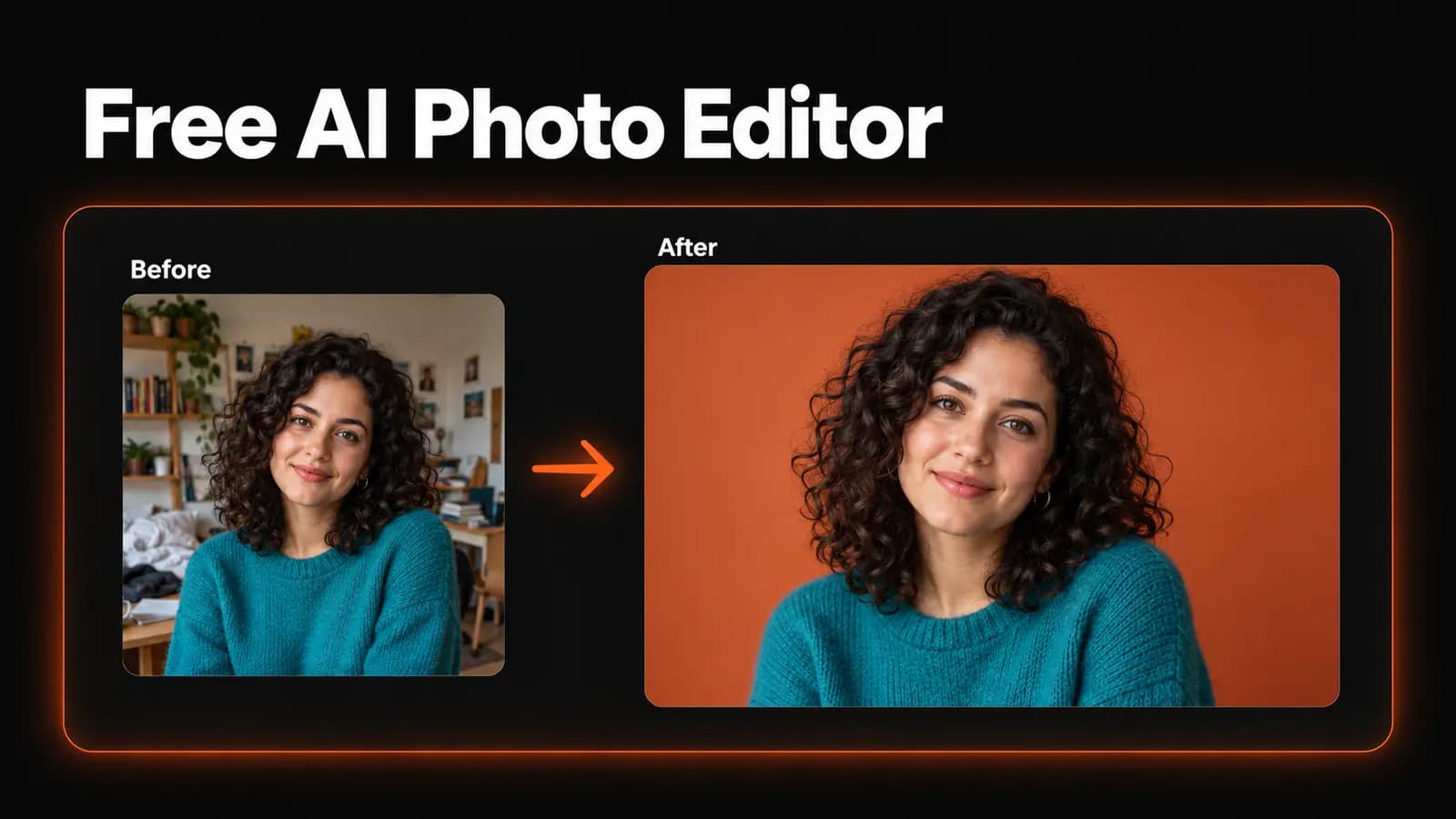
You have a photo to fix, and you'd like to do it without paying. Searching for an ai photo editor free can mean anything from removing a distracting background to asking AI to change the lighting. Those jobs don't necessarily come with the same access or cost.
On LoveImage, Free gives you 20 one-time signup credits, selected image tools, a 1K maximum image quality tier, and personal, non-commercial use. The prompt-based Photo Editor requires a paid plan. Here's what you can actually do before subscribing, based on the product settings as of October 27, 2026.
What does an AI photo editor free plan include?
Start with the distinction between a free account and free processing. A Free account has no subscription charge, but processing tasks still spend credits. The signup allowance arrives once; it does not refill every day or month.
You need to register, sign in, and verify your email to upload and process your own photos. Free-plan outputs have no added LoveImage watermark, but that does not give them commercial-use permission.
The homepage also offers a signed-out Z-Image text-to-image trial, which generates new pictures from text rather than editing your photos. It allows up to three images per device per UTC day, subject to network limits and a cooldown; trial files are deleted after 24 hours.
Before choosing a tool, check whether your plan allows it and whether your balance covers the task. Some tools listed under Free cost more than the entire signup allowance, even though your account has permission to use them.
The photo tools you can use, and their costs
The following tools are allowed on Free. These are the current costs for one processing task at the tool's Standard setting, not a promise of unlimited free edits.
| Tool | Processor | Credits per task | Covered by 20 signup credits? |
|---|---|---|---|
| Background Remover | Background Remover | 1 | Yes |
| Blur Background | Background Remover | 1 | Yes |
| Image Background Changer | Background Remover | 1 | Yes |
| Inpaint & Erase | Object Removal | 4 | Yes |
| Upscale to 4K | Image Upscaler 2× | 2 | Yes |
| Image to Prompt | Image to Prompt | 2 | Yes, but produces text |
| Watermark Remover | Image Eraser | 27 | No |
| Colorize Photo | Photo Colorizer | 27 | No |
Background removal isolates the subject; the blur and background-change tools use that cutout to make a new composition. Inpaint & Erase handles object removal. The upscaler doubles image dimensions, while Image to Prompt describes an image in words rather than returning an edited photograph.
Watermark Remover and Colorize Photo each cost 27 credits. Although Free allows their processors, a new account's 20 credits cannot fund even one task. Don't register specifically for free colorization expecting the signup allowance to cover it; paid credit packs are also restricted to subscribers.
For a personal portrait with a distracting room behind it, the background tools are a reasonable starting point. For an old monochrome family photo that needs color, the allowance won't cover the relevant processor. Choose by the job you need done, not just the word “free” beside the plan.
Why the prompt-based Photo Editor needs a paid plan
The Photo Editor lets you upload a picture and describe a change, such as different lighting, color, mood, or background. Its current model selection includes GPT Image 2 Edit, Nano Banana 2, Seedream 4.0 Edit, and other reference-capable models. None of the models available in that editor is included on Free; Image to Image also requires paid model access.
The wider model list can cause confusion here. Free includes Nano Banana, Imagen 4 Fast, Z-Image, Seedream 4.0, and GPT Image 1.5 for text-to-image generation. That access doesn't extend to their editing counterparts: Seedream 4.0 Edit, for example, is a separate model from Seedream 4.0.
Before paying, write down the change you need. “Put this portrait on a plain background” can fit a dedicated background tool. “Relight this portrait as if it were taken beside a window, preserving the face and clothing” calls for the prompt-based editor, followed by careful inspection of what changed.
A useful first edit with the signup allowance
Pick one personal photo and one visible problem. A portrait with a cluttered background is a useful example because you can judge the cutout without also asking the model to alter the face, clothes, or pose. Keep the original file separately so you always have something to compare against.
Open the Image Background Changer and follow this sequence:
- Sign in and upload the source. Use Choose source photo to upload a JPEG, PNG, or WebP within the displayed limits: up to 10 MB, with no side above 4,096 pixels. Check that the preview shows the photo you intended to edit.
- Choose the replacement background. Select a solid color or upload a background image. For a first attempt, a plain color makes cutout errors easier to spot.
- Check the cost and process once. The current background-removal task costs one credit. Click Process image and wait for its result before submitting another task.
- Inspect and download. Look around hair, glasses, shoulders, and gaps between fingers. Click Download image to save the composition before leaving the page.
After processing, changing the background color or replacement image happens in your browser without another AI call. You can compare a few backgrounds against the same cutout without paying for a new removal each time. That makes this a more economical first experiment than repeatedly submitting the source.
If an edge looks wrong, try a background that makes the flaw visible before deciding whether the result is usable. Check both a close view and the size at which you'll share the picture. A flattering thumbnail can conceal a missing strand of hair or a pale outline around dark clothing.
At current rates, one background-removal task, one object-removal task, and one 2× upscale would total seven credits for single outputs. That is a budgeting example, not a recommendation to run every photo through all three tools. Spend the remaining balance only when you can name the next correction you need.
What the 1K limit means for your image
Free's maximum selectable image quality tier is 1K. A model may offer higher settings without making them available on your plan. For example, Free can use Seedream 4.0 at 1K, but not its 2K or 4K settings. GPT Image 1.5's Medium setting is allowed on Free, while High is not.
Processing tools need a separate explanation. They use a Standard setting, and the upscaler applies a fixed 2× enlargement based on the source dimensions. The “Upscale to 4K” page name does not mean every upload becomes a 4K image, and the plan's 1K tier should not be read as an exact pixel-size specification for every processed export.
Check the downloaded file's width and height before deciding where to use it. Adobe's guide to image size and resolution distinguishes pixel dimensions from pixels per inch for printing. A quality-tier label alone cannot tell you how large a photograph will print well.
For a personal avatar or a small image in a digital scrapbook, inspect the result in that layout. For a large print, work backward from the dimensions you need and preserve the highest-quality original. Enlarging an image can change its appearance; inspect fine text and facial details rather than assuming extra pixels mean extra accuracy.
No watermark doesn't mean commercial use
Free-plan outputs are for personal, non-commercial use. A family collage or a personal photo experiment fits that purpose; a client deliverable, product listing, or paid advertisement needs the commercial permission included with a paid plan. A clean download without a watermark doesn't change this distinction.
Creator, Studio, and Scale include commercial use, subject to the Terms of Service and applicable model licenses. You still need permission to upload and process the source image. If the finished edit is intended for business use, choose the appropriate plan before producing that output.
When paying solves the actual problem
A paid plan makes sense when you need prompt-based photo editing, higher-resolution generation, commercial use, or more credits for regular work. If your next step is turning the edited photo into a video, that also requires a paid plan.
Creator already includes the full model catalog and image settings up to 4K where supported. Studio and Scale have the same 4K image ceiling, so moving above Creator does not automatically buy a higher still-image resolution.
Paid plans provide recurring monthly credits, and each processing task still spends them. Compare the current plan allowances and prices against the tasks you expect to repeat. A subscription does not mean unlimited edits.
If all you need is a plain background for one personal photo, begin with the dedicated tool and inspect its result. If you need to describe broader changes to an existing picture, open the AI Photo Editor and choose a paid plan that covers the work.