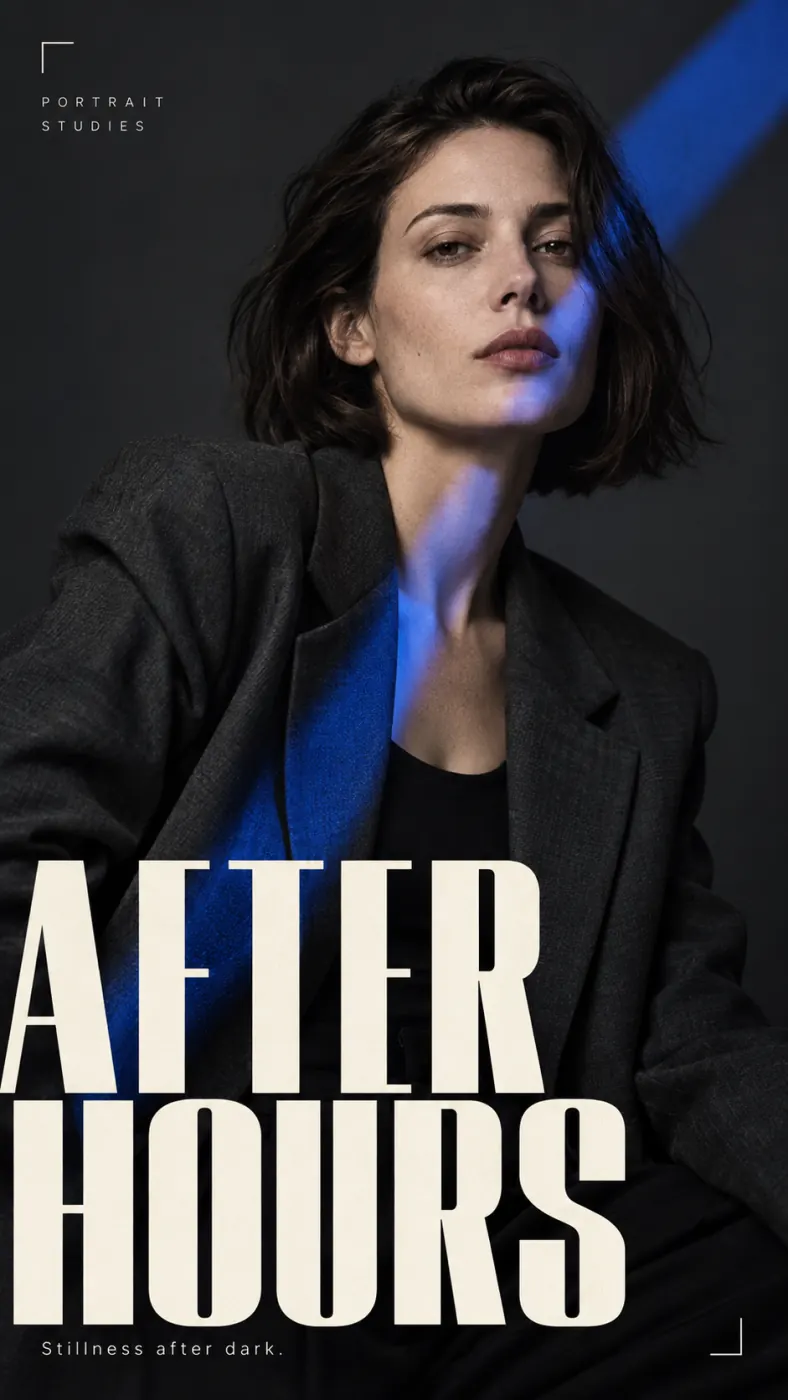
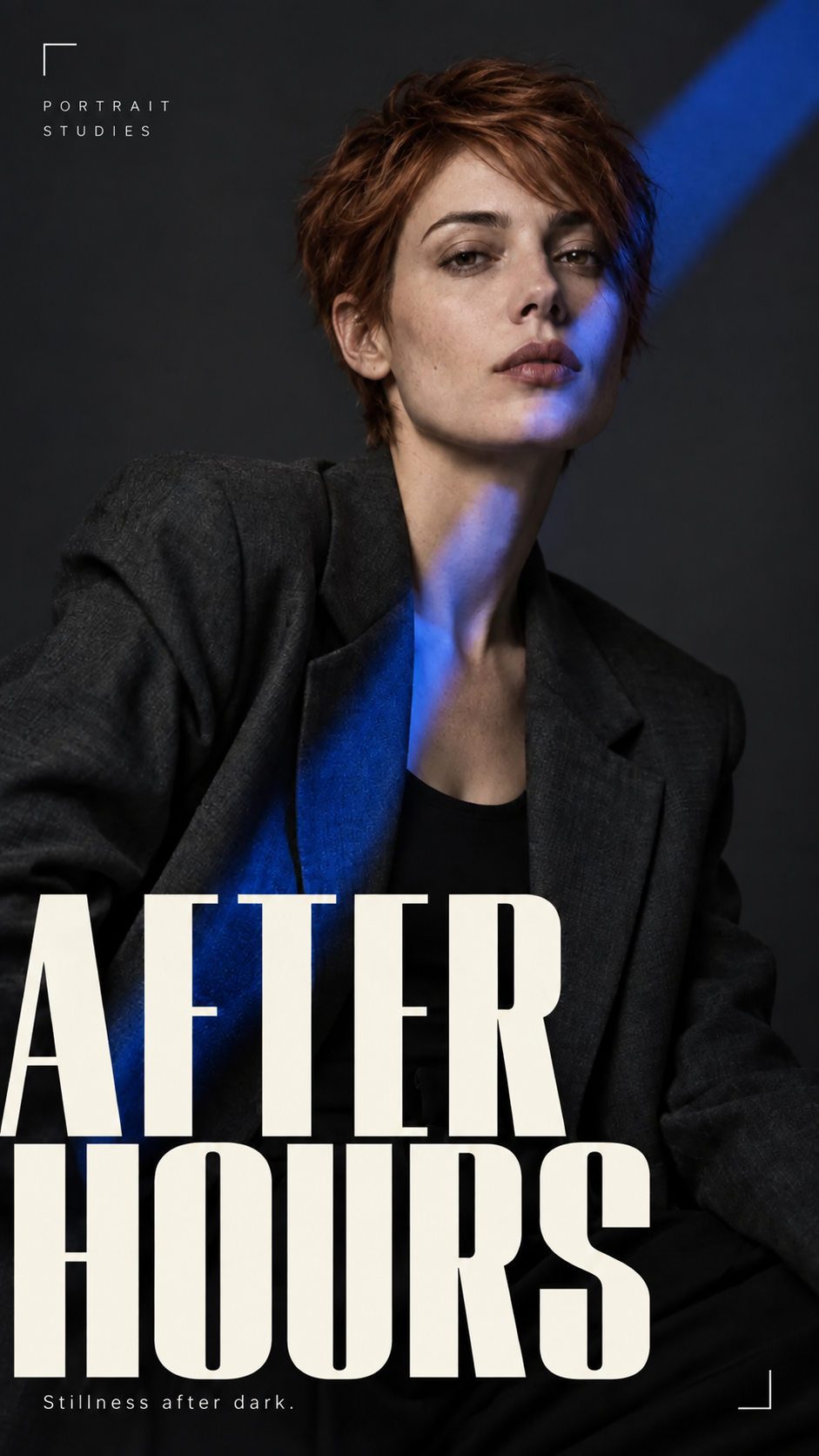
Image to Image
A prompt in, a finished still out — photoreal or illustrated, up to 4K, with readable text and hands that have five fingers.
Your prompt and settings follow you through sign-in. Review them before generating.
Image editing · Creative inspiration
One image. More possibilities.
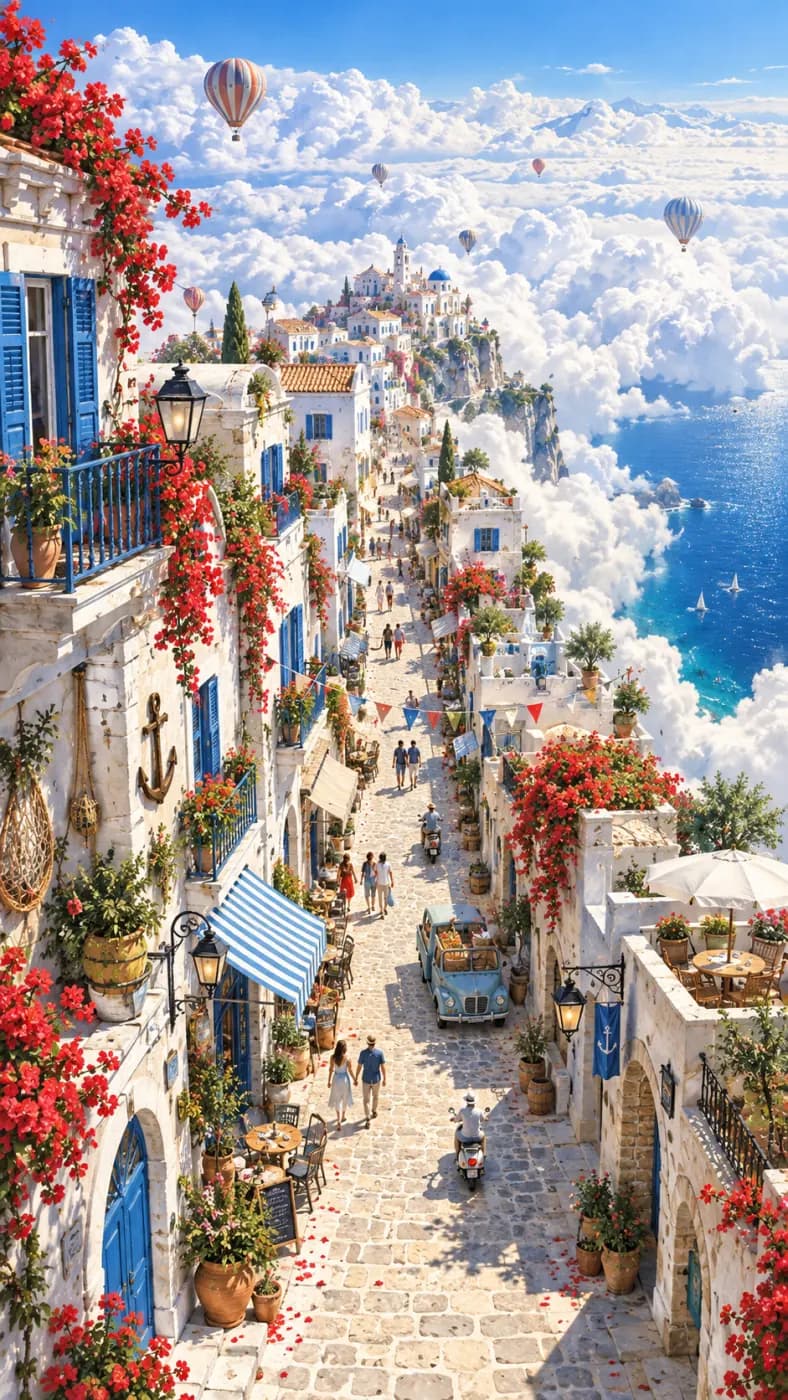
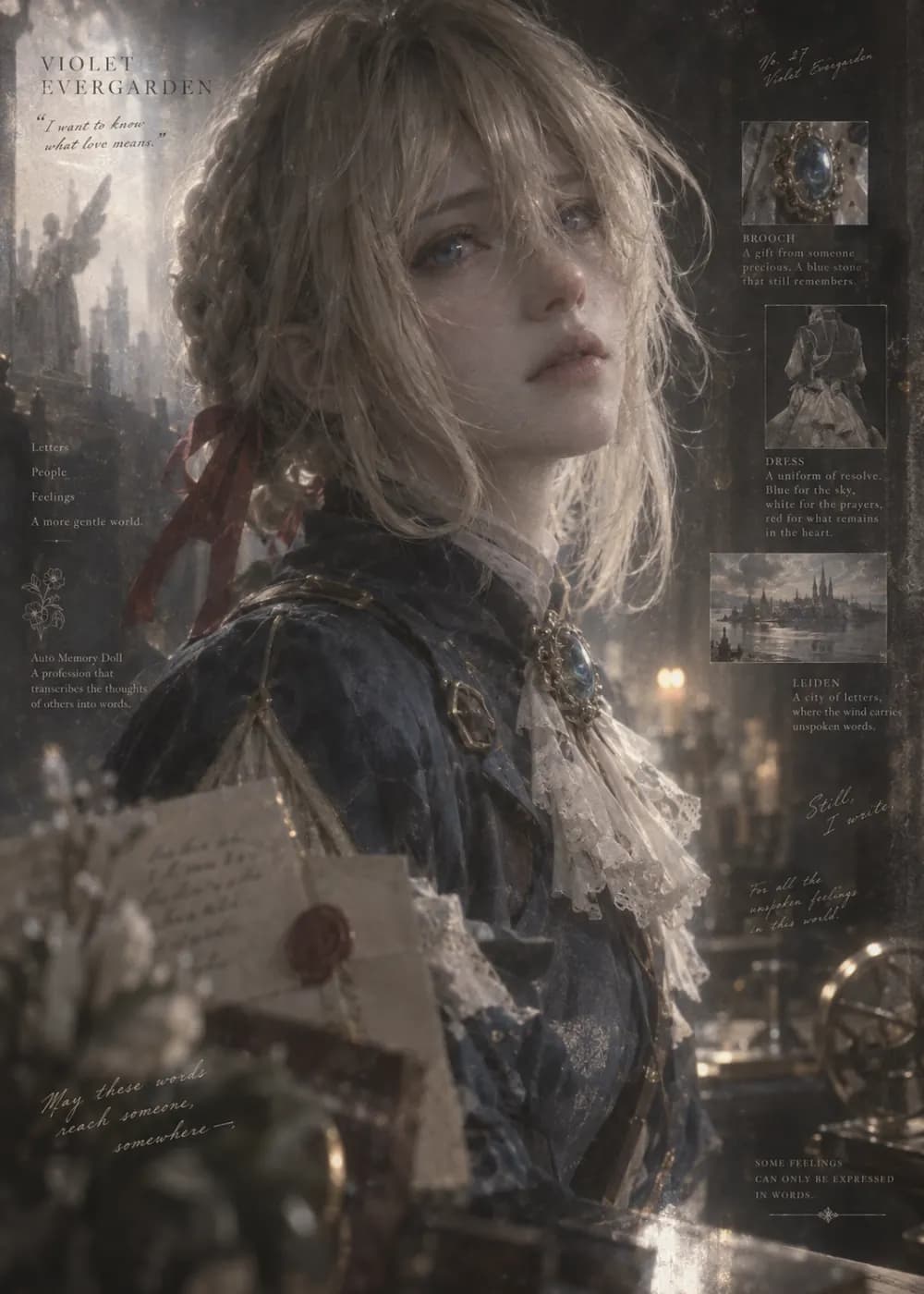
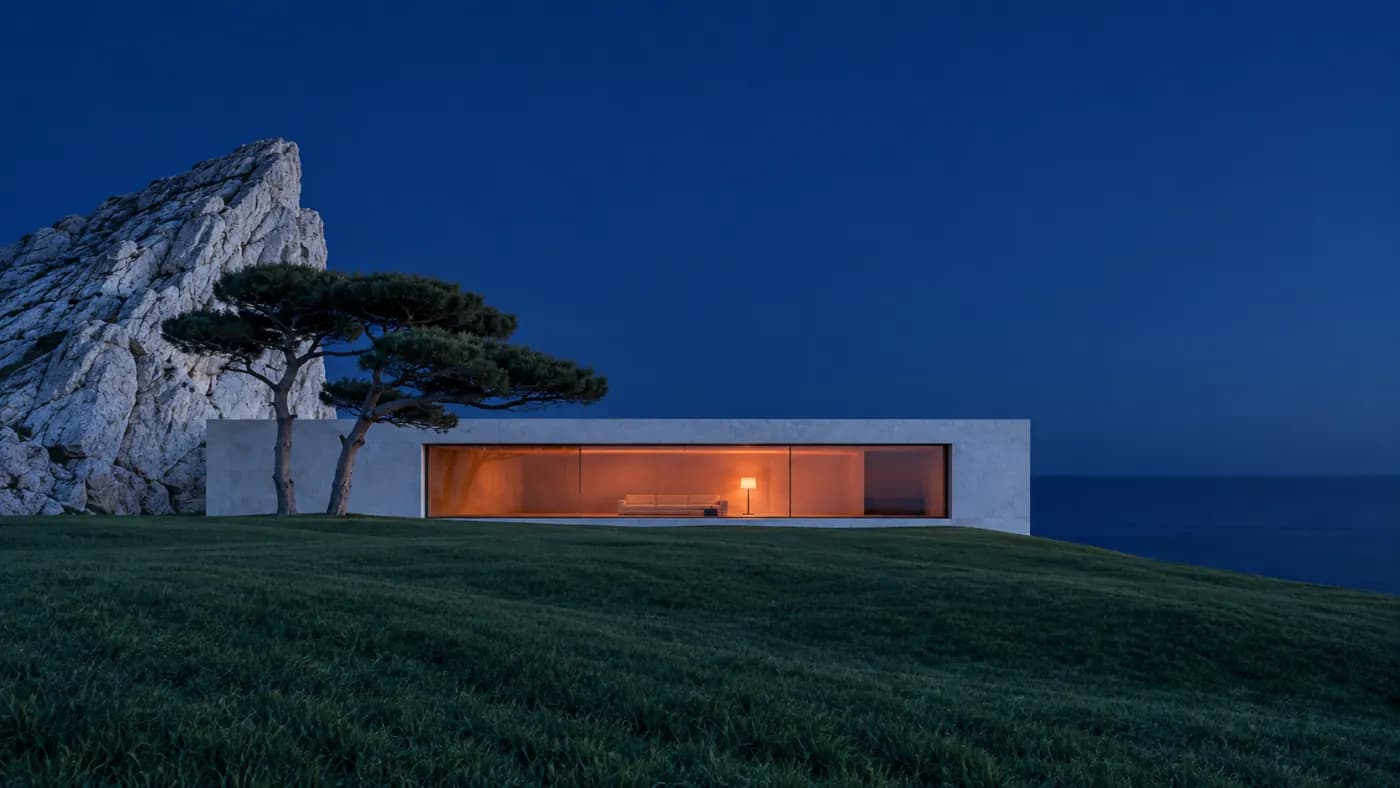
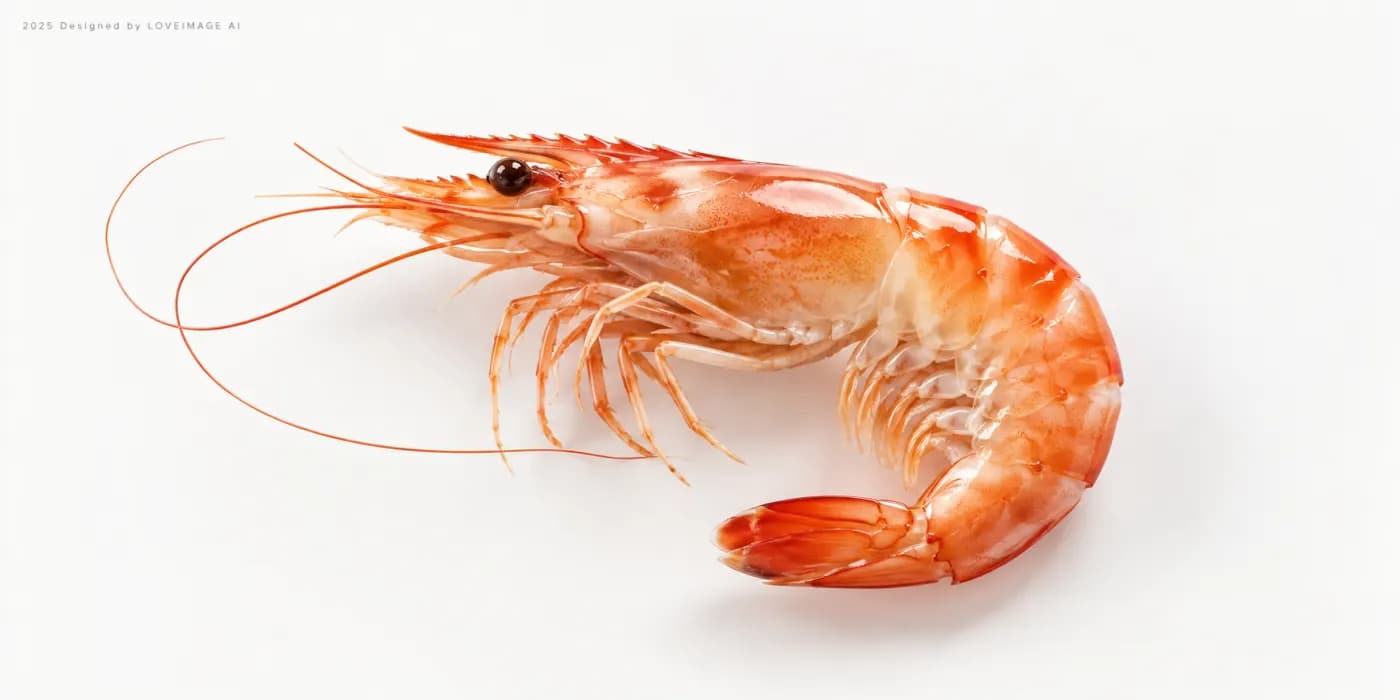
Explore editing ideas for Nano Banana 2. Pick a direction and make it yours.
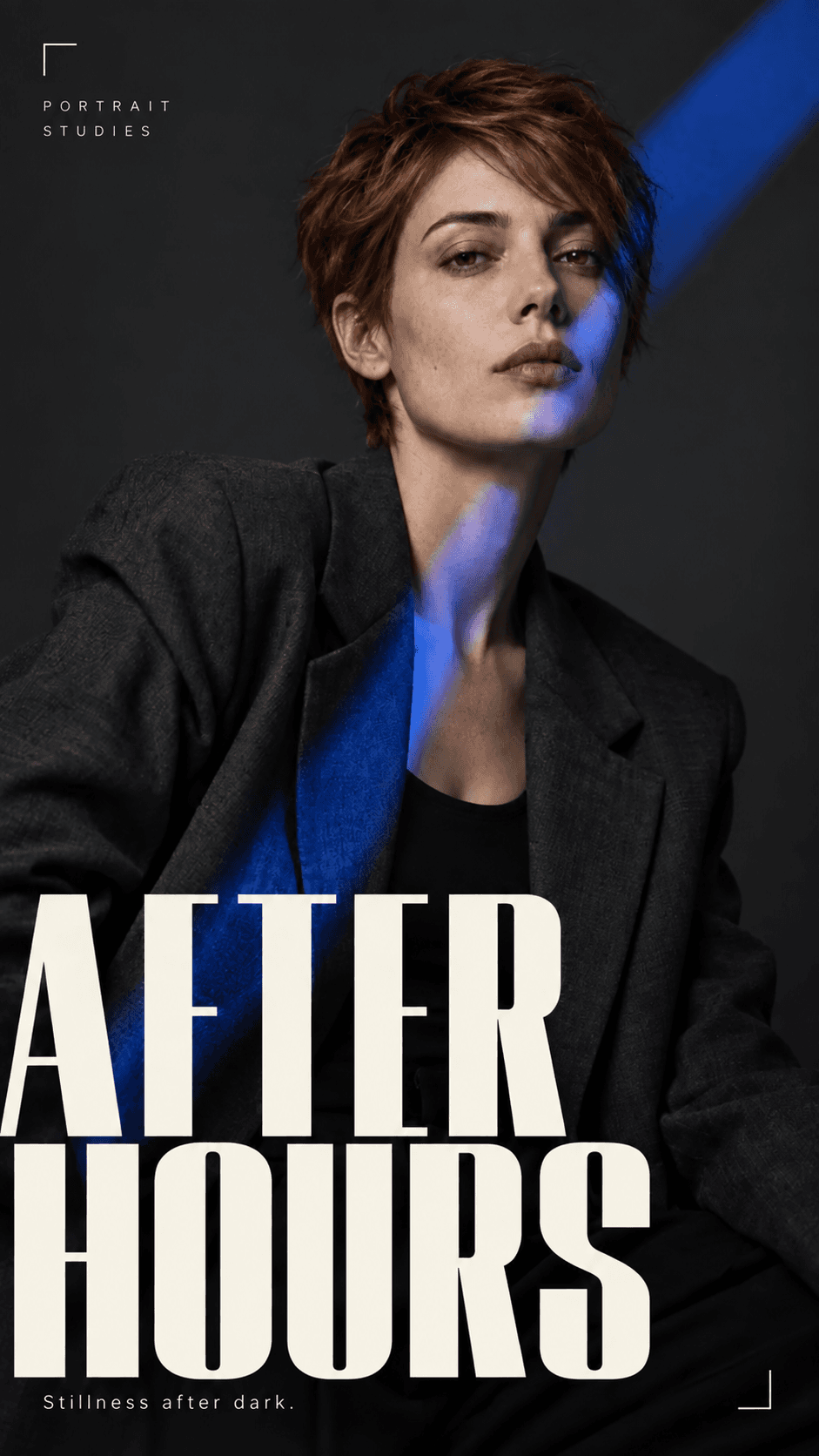
Change hairstyle
Copper pixie cut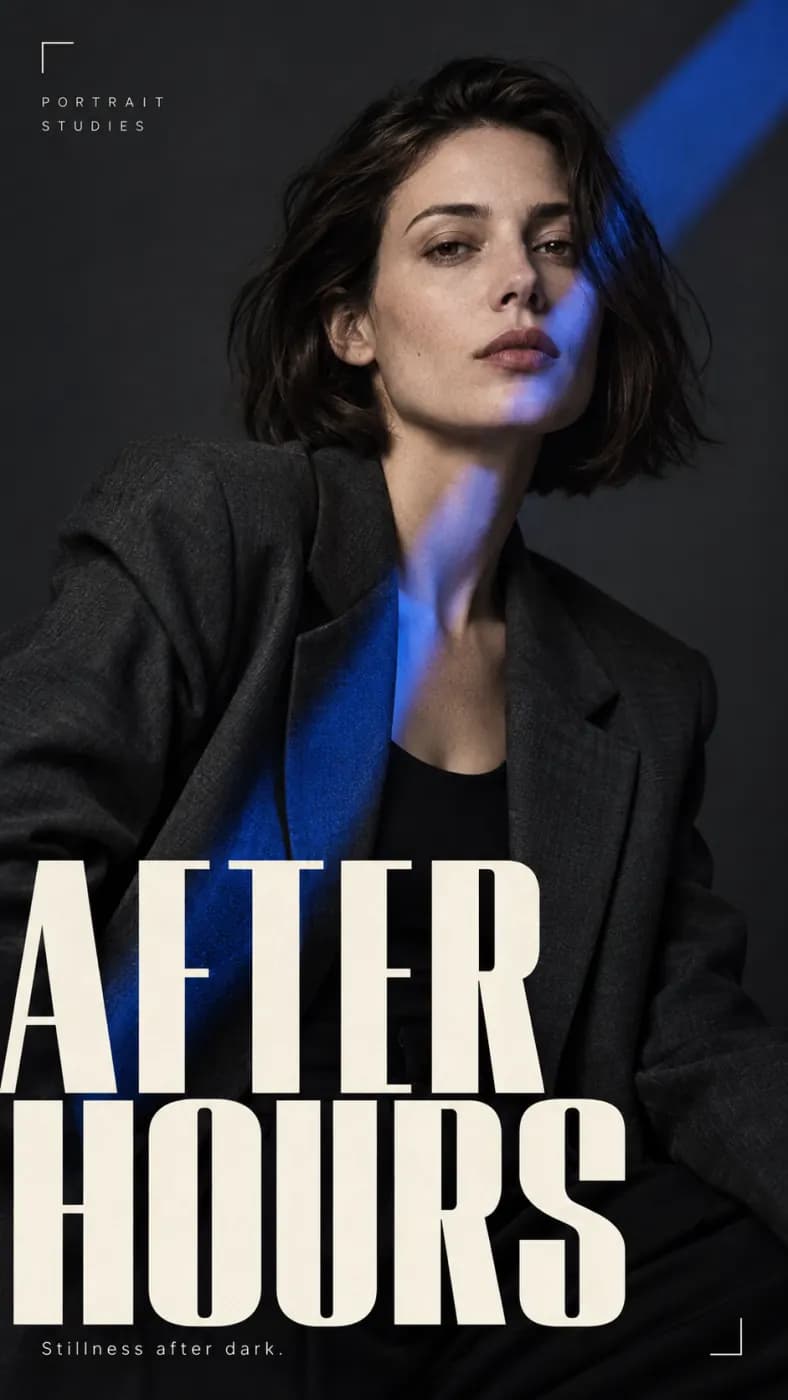
Start with this image and prompt. Make your own version.
Choose an editing example and use its image and prompt to start your own creation.
Why Image to Image on LoveImage
GPT Image 2 for legible text, Nano Banana Pro for 4K detail, Imagen 4 Fast for cheap exploration, Seedream 5 Pro for wide ratios. Same prompt, switch models, pick a look.
Render at 1K to iterate, then 2K or 4K for print, hero banners and anything a client will zoom into.
GPT Image 2 renders lettering on signs, packaging and posters accurately — the single most-requested fix in AI imaging.
Cinematic, Editorial, Anime, Product and Documentary presets tune the whole result, not just a filter on top.
Up to four outputs per run. Same seed for a controlled variation, random seed for range.
Erase, inpaint, remove the background or upscale the result from the same feed. No round-trip through another app.
Models, one subscription
Providers under one key
Maximum output
How to use Image to Image
- STEP 01Describe the image
Subject, setting, light, lens. Concrete beats clever: “overhead flat lay, terracotta cups on raw linen, soft window light” gets you there first time.
- STEP 02Choose ratio and quality
Choose from the ratios and quality levels supported by your model, then review the credit estimate before generating.
- STEP 03Pick a model and a style
Photoreal or illustrated, warm or clinical. Not sure? Batch four and let the results decide.
- STEP 04Refine and download
Reuse the prompt with one change, inpaint a detail, upscale — then download a PNG with no watermark.
Where Image to Image earns its keep
E-commerce
Listing images, lifestyle shots and packshots without booking a studio for each SKU.
Marketing and ads
Ten hero-image candidates by lunch. Test them, keep the winner, upscale it.
Editorial and publishing
Cover art and illustration on deadline, in a consistent house style.
Concept and design
Mood boards, environment concepts and character explorations before anything is committed.
Social
On-brand visuals every day, sized for each platform from one prompt.
4K output holds up on posters, packaging and point-of-sale.
Built for people who ship
Run one prompt across models from different providers and keep the take that reads best — no second subscription, no re-typing.
Ratios, resolutions and clip lengths come from each model's own limits, so what you pick is what renders.
A failed job is refunded automatically. You are charged for output, not for attempts.
Image to Image: questions people ask
1K, 2K or 4K at render time; the free plan renders at 1K. Any image can be upscaled 2× afterwards.
No, on any plan. Downloads are clean PNGs.
Yes on any paid plan — ads, products, client work, print. Free-plan images are for personal, non-commercial use.
Credits depend on the model, settings and output count. Review the live estimate before generating. New accounts get free starter credits for selected image models; other models and video need a paid plan.
GPT Image 2 for anything with text in it. Nano Banana Pro for photoreal work at 4K. Imagen 4 Fast when you want many quick drafts. Seedream 5 Pro for the widest choice of ratios. Batching all four costs the same as four single runs.
Use Image to Image with a reference, lock the seed, and change only the parts of the prompt that need to change.
Pick GPT Image 2 for exactly that: lettering renders accurately and anatomy holds. For heavy typography, Poster Maker adds layout control on top.
Real people without consent, trademarked characters, and anything that fails our content policy. Prompts are checked before credits are spent, and rejected prompts cost nothing.