Imagen 4 AI Image Generator
Create images from a written brief with Imagen 4. Write a photographic brief with concrete scene details, then judge the result like a photograph.
Your prompt and settings follow you through sign-in. Review them before generating.
Start with a visual direction
Explore creative references, reuse a scene description and add your own ideas.
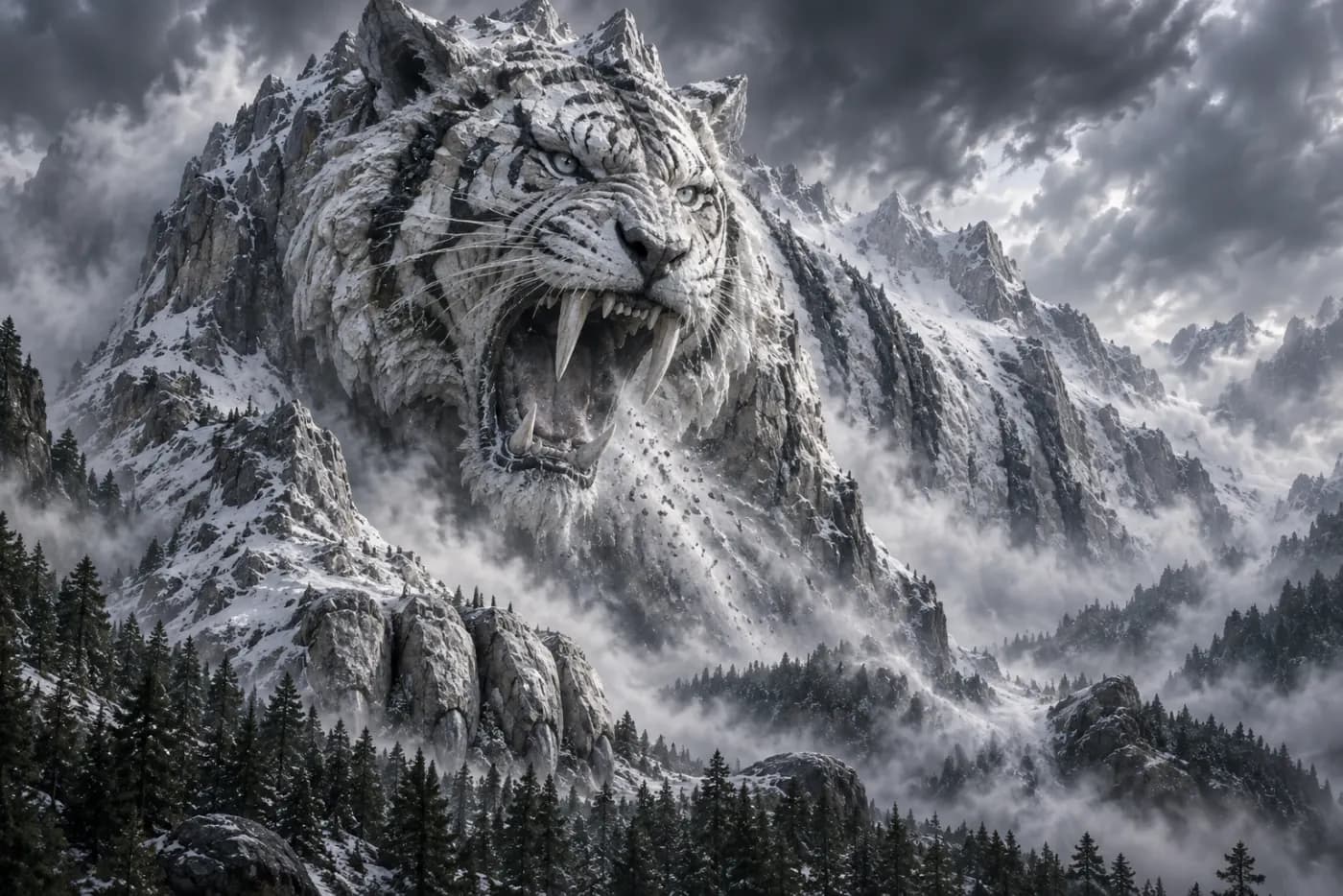
White tiger
A majestic white tiger among snow and mist, detailed fur and a cold mountain atmosphere.
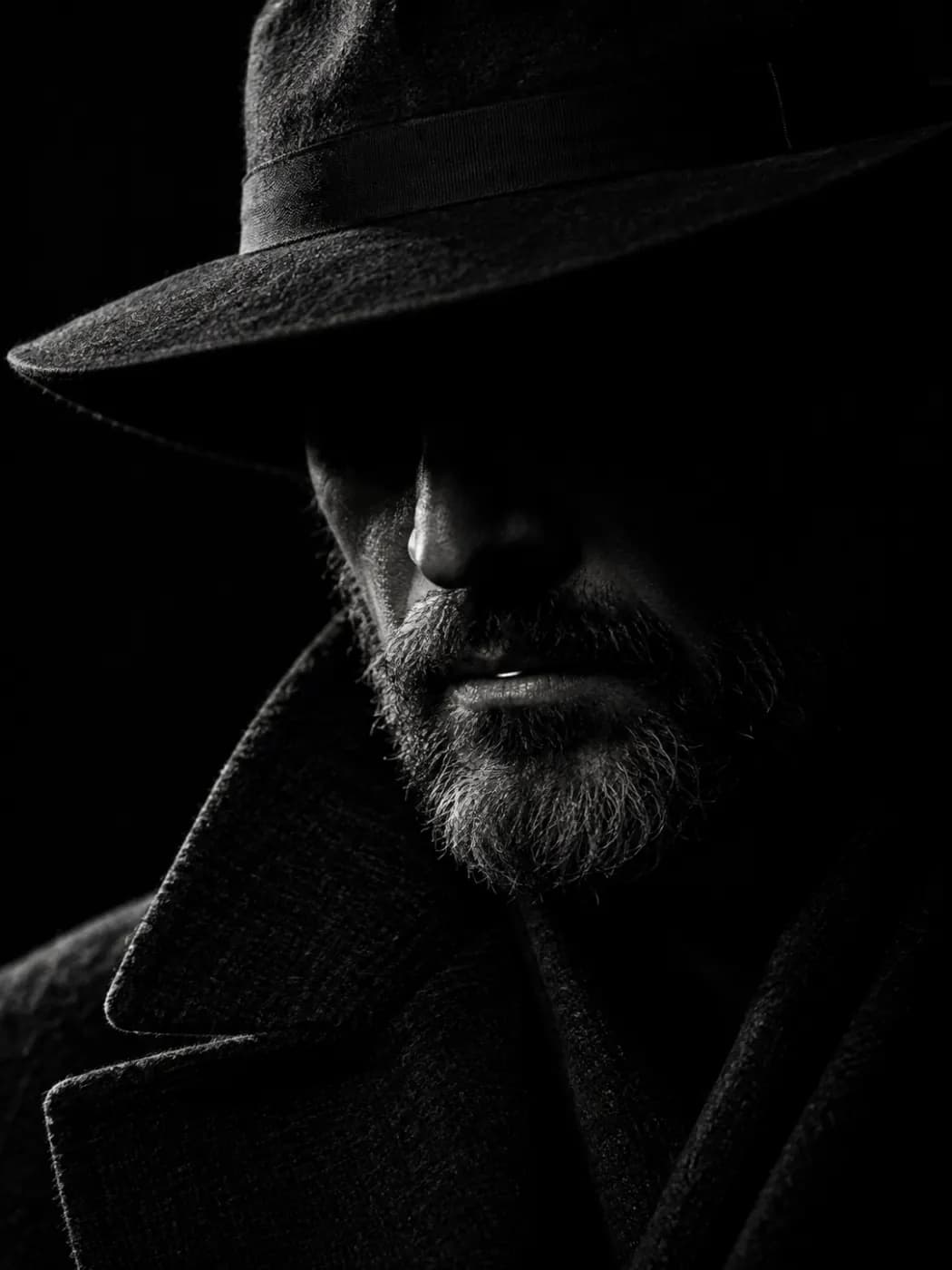
Noir portrait
A noir portrait under a dark hat, one narrow beam of light shaping the face against black.
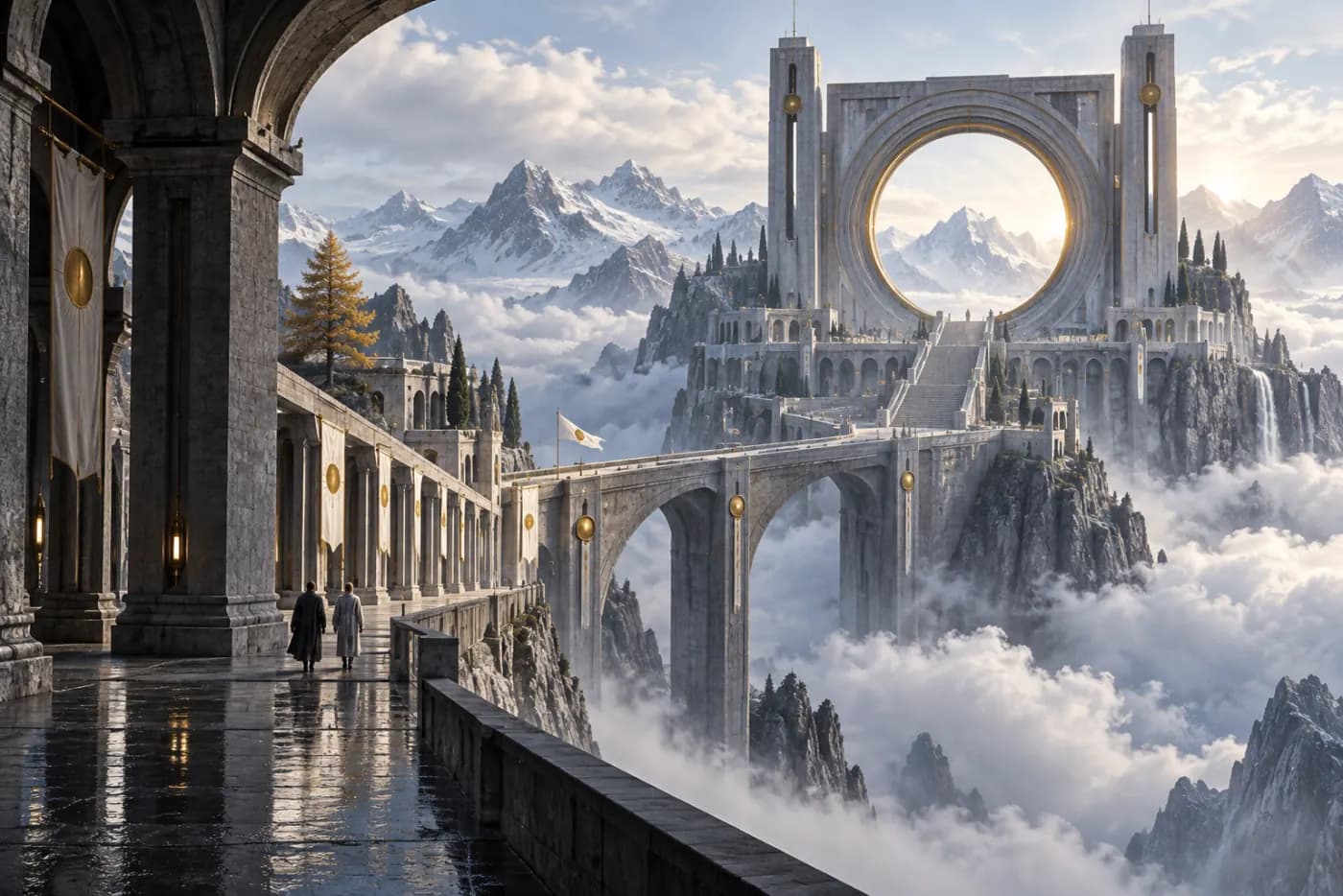
Alpine gateway
A grand stone gateway overlooking a snowy alpine valley, reflected light and deep perspective.
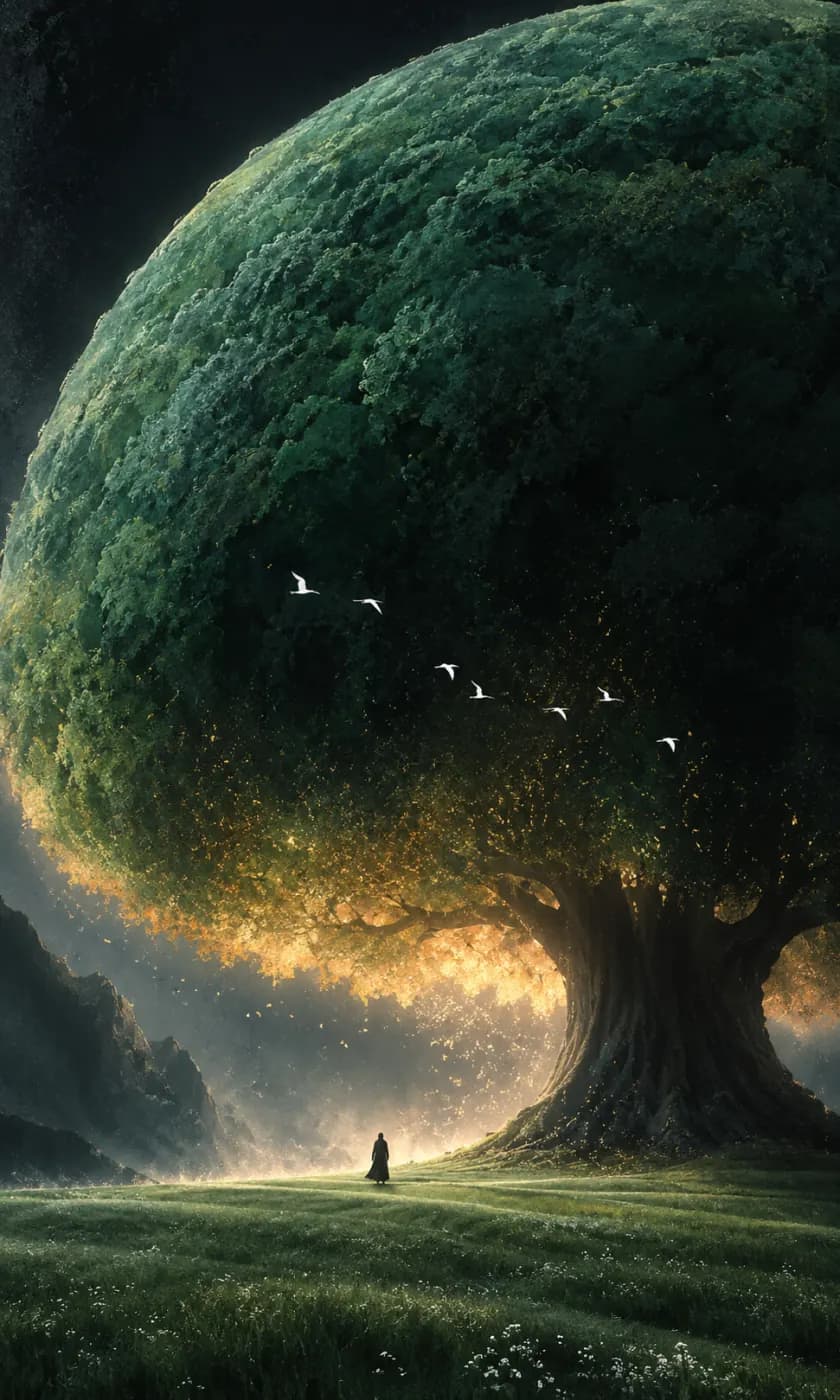
Giant tree
A lone person beneath a colossal dark green tree, soft light at the horizon, epic scale.
How to get more from Imagen 4
Write a photographic brief with concrete scene details, then judge the result like a photograph.
Set up a photographic scene
For a still life, landscape or lifestyle concept, decide the subject, environment and time of day. Make the intended use clear so the composition leaves the right amount of space around the subject.
Describe light and materials
Explain where the light comes from, whether it is soft or hard, and how the main surfaces should look. Add camera distance and viewpoint before relying on broad adjectives such as cinematic or premium.
Look closely at physical details
Check shadows, reflections, contact points and repeated textures. Inspect any hands or written text separately. Revise the specific physical detail that feels wrong rather than adding more quality adjectives.
Imagen 4 at a glance
What this model actually accepts. The studio shows exactly these options when it is selected — nothing more, nothing it would reject.
Photoreal Google stills, five ratios
Open Imagen 4 in the studio →- Made by
- Output
- Still images
- Aspect ratios
- 1:1 · 4:3 · 3:4 · 16:9 · 9:16
- Resolution
- Default output
- Reference image
- Not used
- Price
- 27 credits per image
How to use Imagen 4 on LoveImage
- STEP 01Write the brief
Explain where the light comes from, whether it is soft or hard, and how the main surfaces should look. Add camera distance and viewpoint before relying on broad adjectives such as cinematic or premium.
- STEP 02Choose available settings
Available here: Default output (no resolution selector). These are the settings enabled in this workspace, not an exhaustive list of the provider’s options.
- STEP 03Review the result
Check shadows, reflections, contact points and repeated textures. Inspect any hands or written text separately. Revise the specific physical detail that feels wrong rather than adding more quality adjectives.
Imagen 4 on LoveImage: questions people ask
For a still life, landscape or lifestyle concept, decide the subject, environment and time of day. Make the intended use clear so the composition leaves the right amount of space around the subject.
Available here: Default output (no resolution selector). These are the settings enabled in this workspace, not an exhaustive list of the provider’s options.
1:1 · 4:3 · 3:4 · 16:9 · 9:16
Explain where the light comes from, whether it is soft or hard, and how the main surfaces should look. Add camera distance and viewpoint before relying on broad adjectives such as cinematic or premium.
Upload one reference image in the workspace, then choose a compatible image-to-image or image-to-video model. Available settings depend on that model.
Check shadows, reflections, contact points and repeated textures. Inspect any hands or written text separately. Revise the specific physical detail that feels wrong rather than adding more quality adjectives.
The cost depends on the model, settings and output count. The workspace shows the credit cost before submission; check that estimate for your selected configuration.
Select the model in the workspace and describe your scene. Add a reference image when needed, choose your settings and review the credit cost before generating.