Kling 2.6 AI Video Generator
Create video clips from a written brief with Kling 2.6. Approach each generation as one shot in an edit, with a clear subject, lighting setup and sound decision.
Video generation is on paid plans. Your prompt and settings follow you through sign-in. See plans
Start with a visual direction
Choose a storyboard scene, then describe the action and camera movement.
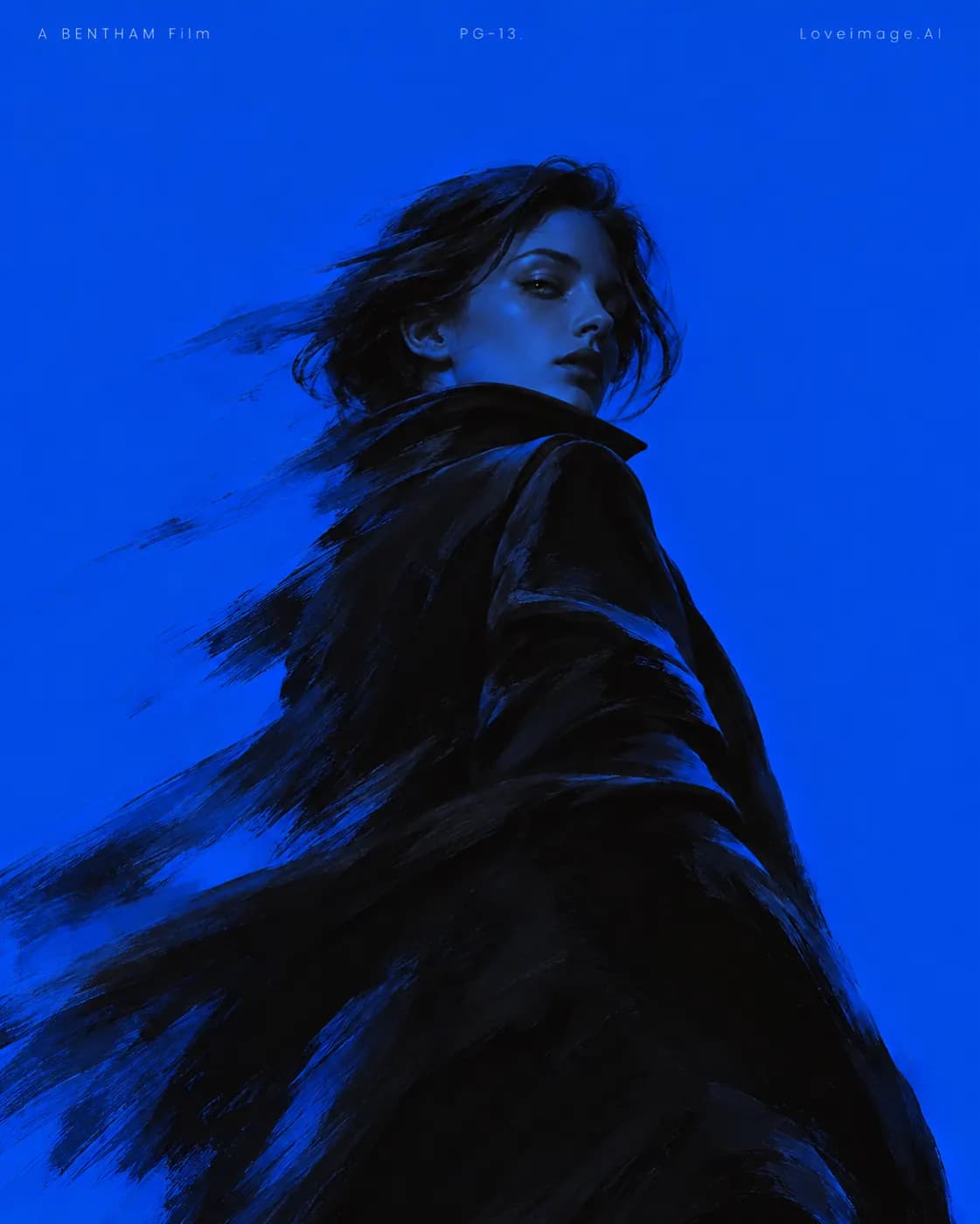
Blue motion
A fashion portrait in saturated blue, windblown hair and an expressive turning pose.
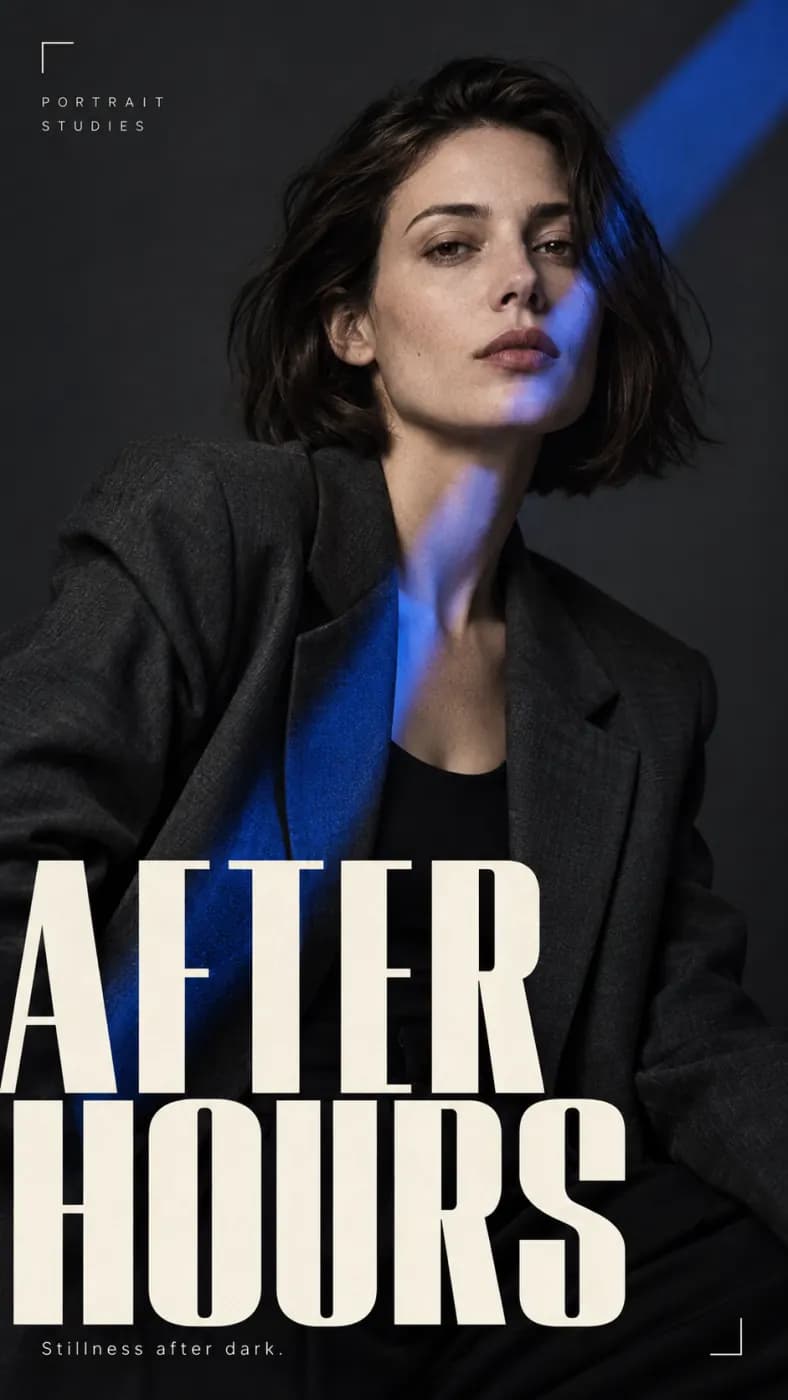
After hours
A fashion editorial portrait in a black jacket with blue accents and bold AFTER HOURS typography.
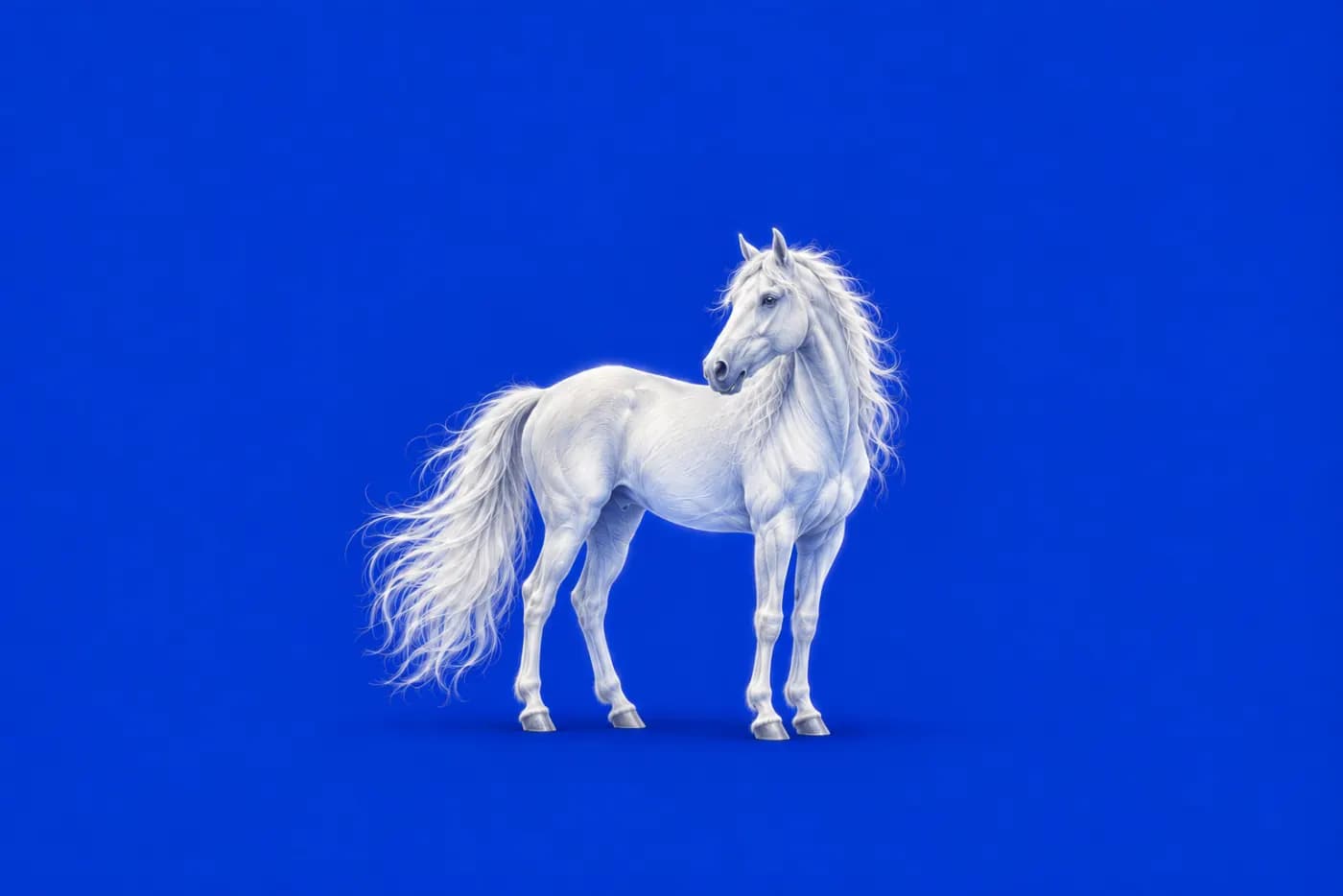
White horse
A white horse against a saturated ultramarine background, clean side profile and crisp studio light.

Equestrian poster
An equestrian fashion poster with bold red expressive lettering and dramatic cropped photography.
How to get more from Kling 2.6
Approach each generation as one shot in an edit, with a clear subject, lighting setup and sound decision.
Prepare a shot for your edit
For a product insert or lifestyle cutaway, decide what the shot must communicate and leave room at the start and end for trimming. A single action is easier to fit into an existing sequence.
Keep the brief visually consistent
Specify the subject, lens viewpoint, lighting direction and one camera move. When adding audio, describe the sound that belongs to this shot rather than a complete music and dialogue sequence.
Judge the transition into the next shot
Check subject placement, motion direction and brightness against the surrounding footage. If the cut feels abrupt, adjust framing or movement instead of adding more visual details to the prompt.
Kling 2.6 at a glance
What this model actually accepts. The studio shows exactly these options when it is selected — nothing more, nothing it would reject.
Cinematic motion with a native soundtrack
Open Kling 2.6 in the studio →- Made by
- Kling
- Output
- Video clips
- Aspect ratios
- 16:9 · 9:16 · 1:1
- Resolution
- 1080p
- Clip length
- 5s · 10s
- Soundtrack
- Optional, generated with the picture
- Reference image
- Not used
- Price
- 74 credits per second of footage
How to use Kling 2.6 on LoveImage
- STEP 01Write the brief
Specify the subject, lens viewpoint, lighting direction and one camera move. When adding audio, describe the sound that belongs to this shot rather than a complete music and dialogue sequence.
- STEP 02Choose available settings
Available here: 1080p. These are the settings enabled in this workspace, not an exhaustive list of the provider’s options.
- STEP 03Review the result
Check subject placement, motion direction and brightness against the surrounding footage. If the cut feels abrupt, adjust framing or movement instead of adding more visual details to the prompt.
Kling 2.6 on LoveImage: questions people ask
For a product insert or lifestyle cutaway, decide what the shot must communicate and leave room at the start and end for trimming. A single action is easier to fit into an existing sequence.
Available here: 1080p. These are the settings enabled in this workspace, not an exhaustive list of the provider’s options.
16:9 · 9:16 · 1:1
5s / 10s
Upload one reference image in the workspace, then choose a compatible image-to-image or image-to-video model. Available settings depend on that model.
You can turn generated audio on or off before submitting.
The cost depends on the model, settings and output count. The workspace shows the credit cost before submission; check that estimate for your selected configuration.
Select the model in the workspace and describe your scene. Add a reference image when needed, choose your settings and review the credit cost before generating.