Veo 3 AI Video Generator
Create video clips from a written brief with Veo 3. Plan the picture and sound together. A focused scene gives you a clearer brief than trying to compress a whole story into one clip.
Video generation is on paid plans. Your prompt and settings follow you through sign-in. See plans
Start with a visual direction
Choose a storyboard scene, then describe the action and camera movement.
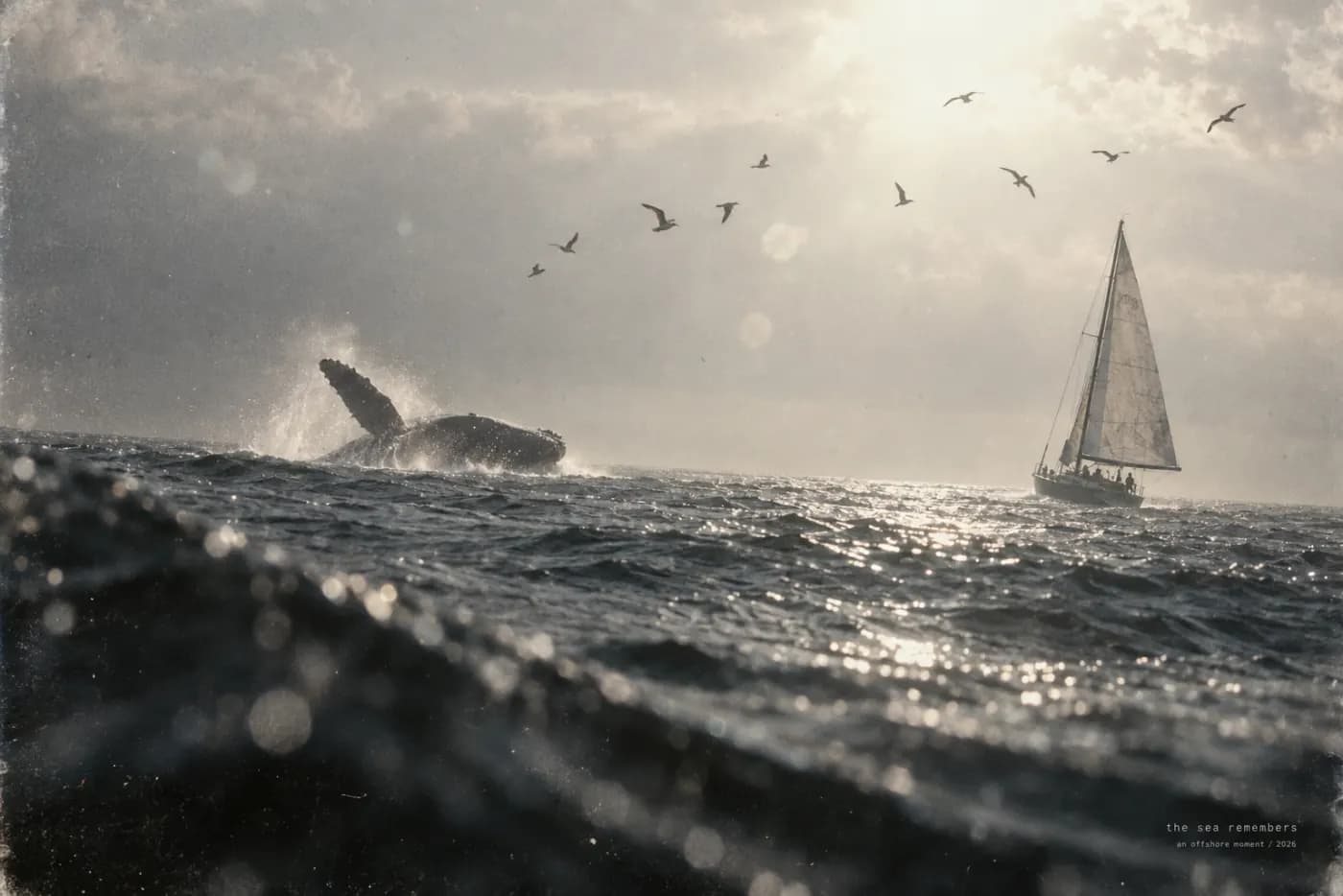
Sea remembers
Sailboats on a sunlit sea, shimmering reflections, low cinematic viewpoint and distant cliffs.
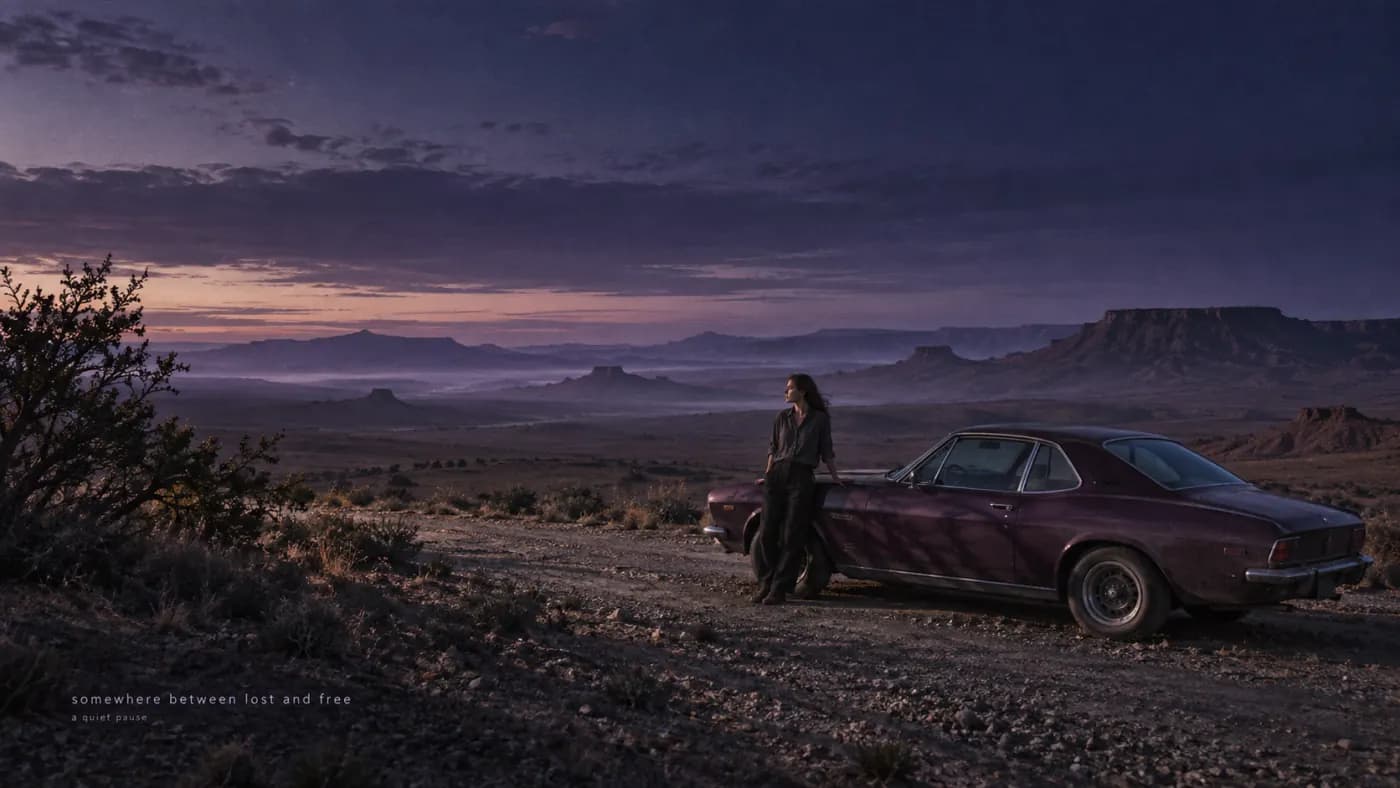
Quiet wilderness
A lone traveler beside a car on a quiet coastal road at violet dusk, expansive landscape.

Ocean clouds
An immense pale whale moving through a stormy cloud ocean, panoramic composition.
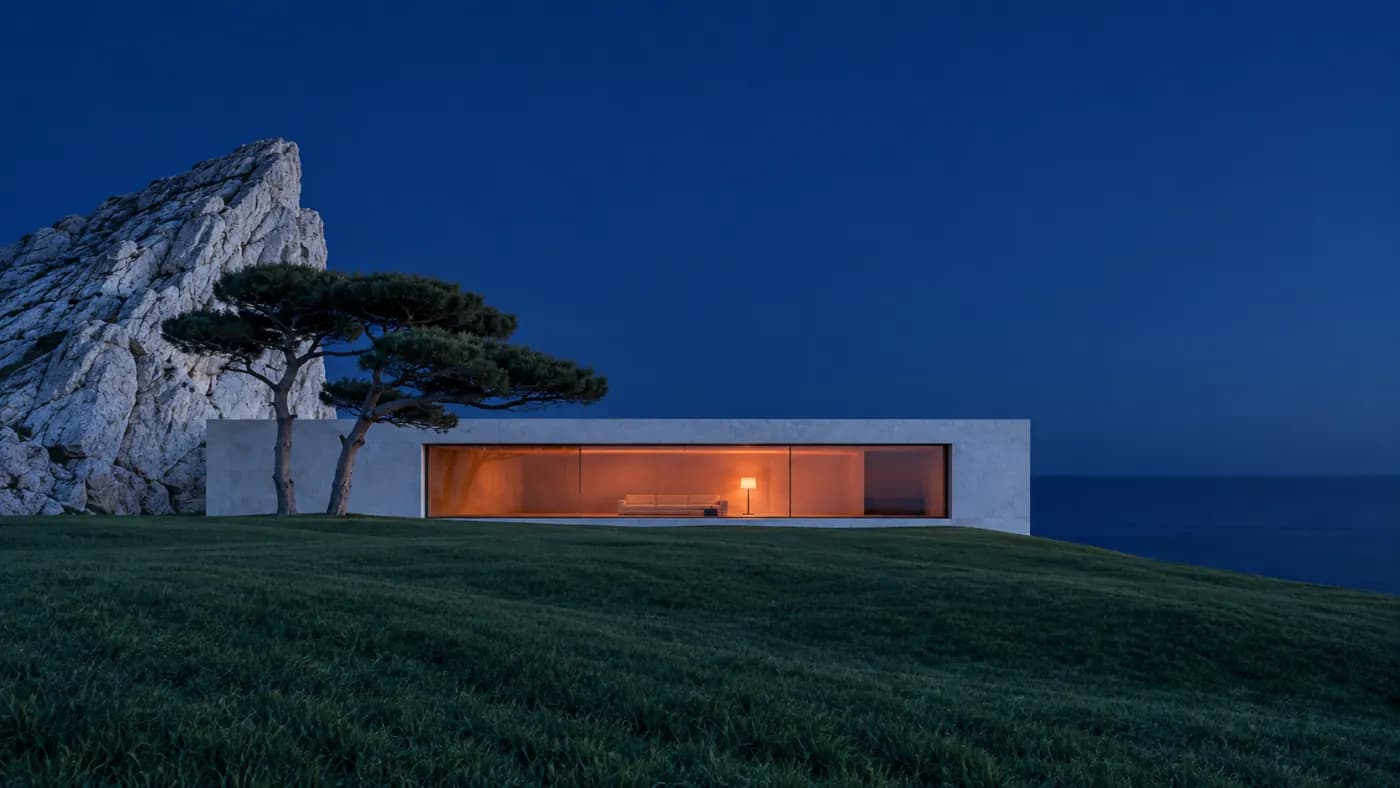
Blue hour villa
A minimalist coastal villa at blue hour, a warm illuminated interior against deep blue sky.
How to get more from Veo 3
Plan the picture and sound together. A focused scene gives you a clearer brief than trying to compress a whole story into one clip.
Build a scene around one audible action
Try a product reveal, a short conversation or a street scene. Decide which sound matters most: packaging opening, a spoken line or the ambience of the location. Keep competing sounds out of the first draft.
Describe the shot in time order
Name the subject and setting, then the action and camera move. Put any dialogue in quotation marks and describe the background sound separately. For a reference image, explain what should move and what should remain still.
Watch once, then listen once
Check the visual continuity first, then listen for unwanted speech, abrupt sound changes and distracting background noise. If one part misses the brief, simplify that part of the prompt before generating another take.
Veo 3 at a glance
What this model actually accepts. The studio shows exactly these options when it is selected — nothing more, nothing it would reject.
Google's flagship clip, sound always on, 8s
Open Veo 3 in the studio →- Made by
- Output
- Video clips
- Aspect ratios
- 16:9 · 9:16
- Resolution
- 720p
- Clip length
- 8s
- Soundtrack
- Always on
- Reference image
- Optional
- Price
- 84 credits per second of footage
How to use Veo 3 on LoveImage
- STEP 01Write the brief
Name the subject and setting, then the action and camera move. Put any dialogue in quotation marks and describe the background sound separately. For a reference image, explain what should move and what should remain still.
- STEP 02Choose available settings
Available here: 720p. These are the settings enabled in this workspace, not an exhaustive list of the provider’s options.
- STEP 03Review the result
Check the visual continuity first, then listen for unwanted speech, abrupt sound changes and distracting background noise. If one part misses the brief, simplify that part of the prompt before generating another take.
Veo 3 on LoveImage: questions people ask
Try a product reveal, a short conversation or a street scene. Decide which sound matters most: packaging opening, a spoken line or the ambience of the location. Keep competing sounds out of the first draft.
Available here: 720p. These are the settings enabled in this workspace, not an exhaustive list of the provider’s options.
16:9 · 9:16
8s
Upload one reference image in the workspace, then choose a compatible image-to-image or image-to-video model. Available settings depend on that model.
There is no separate audio toggle. Check the returned soundtrack after generation.
The cost depends on the model, settings and output count. The workspace shows the credit cost before submission; check that estimate for your selected configuration.
Select the model in the workspace and describe your scene. Add a reference image when needed, choose your settings and review the credit cost before generating.