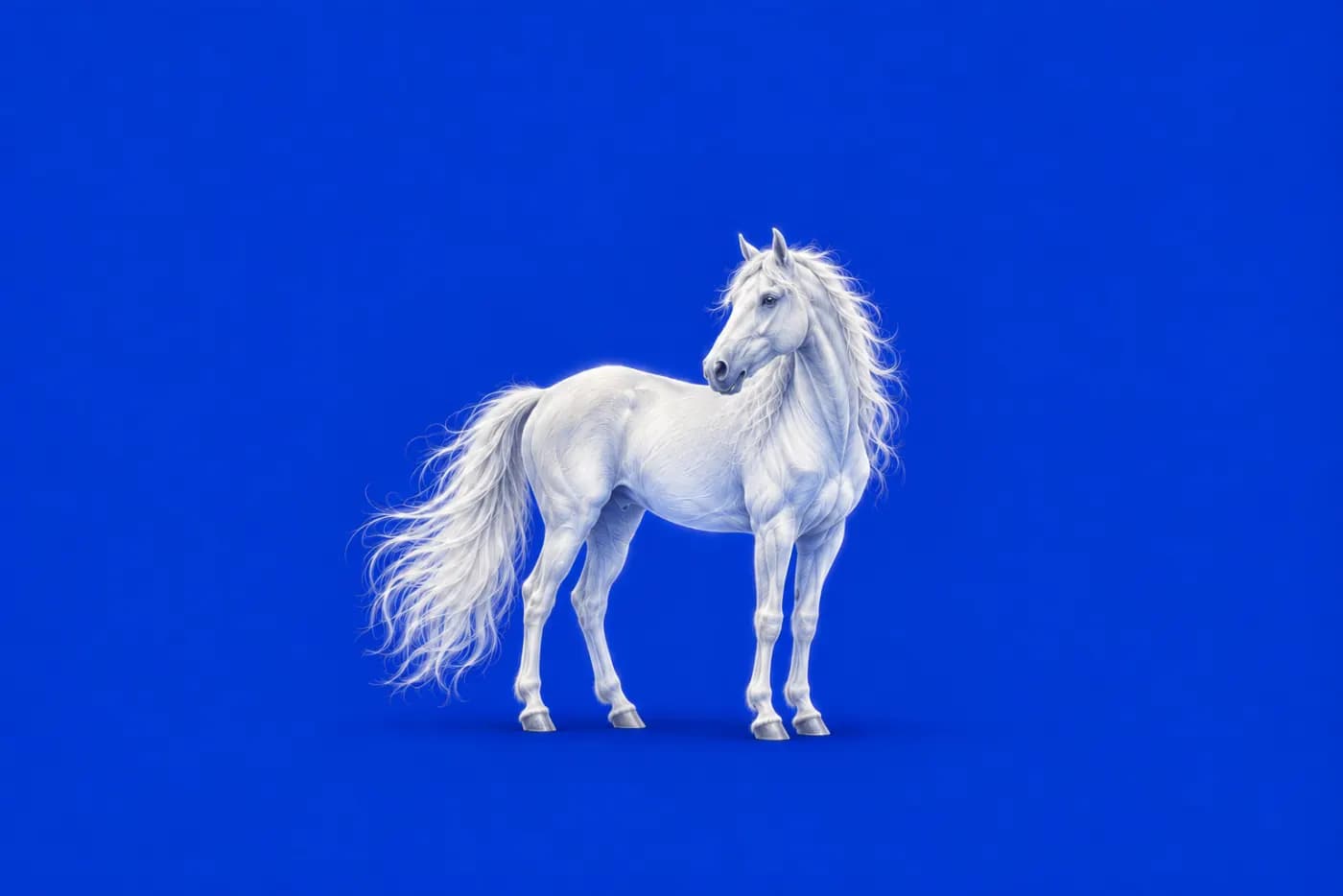
Kling 3.0 AI Video Generator
Create video clips from a written brief with Kling 3.0. Use the brief to define a complete movement: where it starts, what changes and where the shot ends.
Video generation is on paid plans. Your prompt and settings follow you through sign-in. See plans
Start with a visual direction
Choose a storyboard scene, then describe the action and camera movement.

Storm dragon
A dark dragon coiling above a mountain summit, storm clouds and distant lightning.

Dune titan
A giant creature formed from golden desert dunes, dust swirling in warm evening light.

Mechanical character
Close-up of an ornate mechanical fantasy character, polished metal plates and sharp reflections.
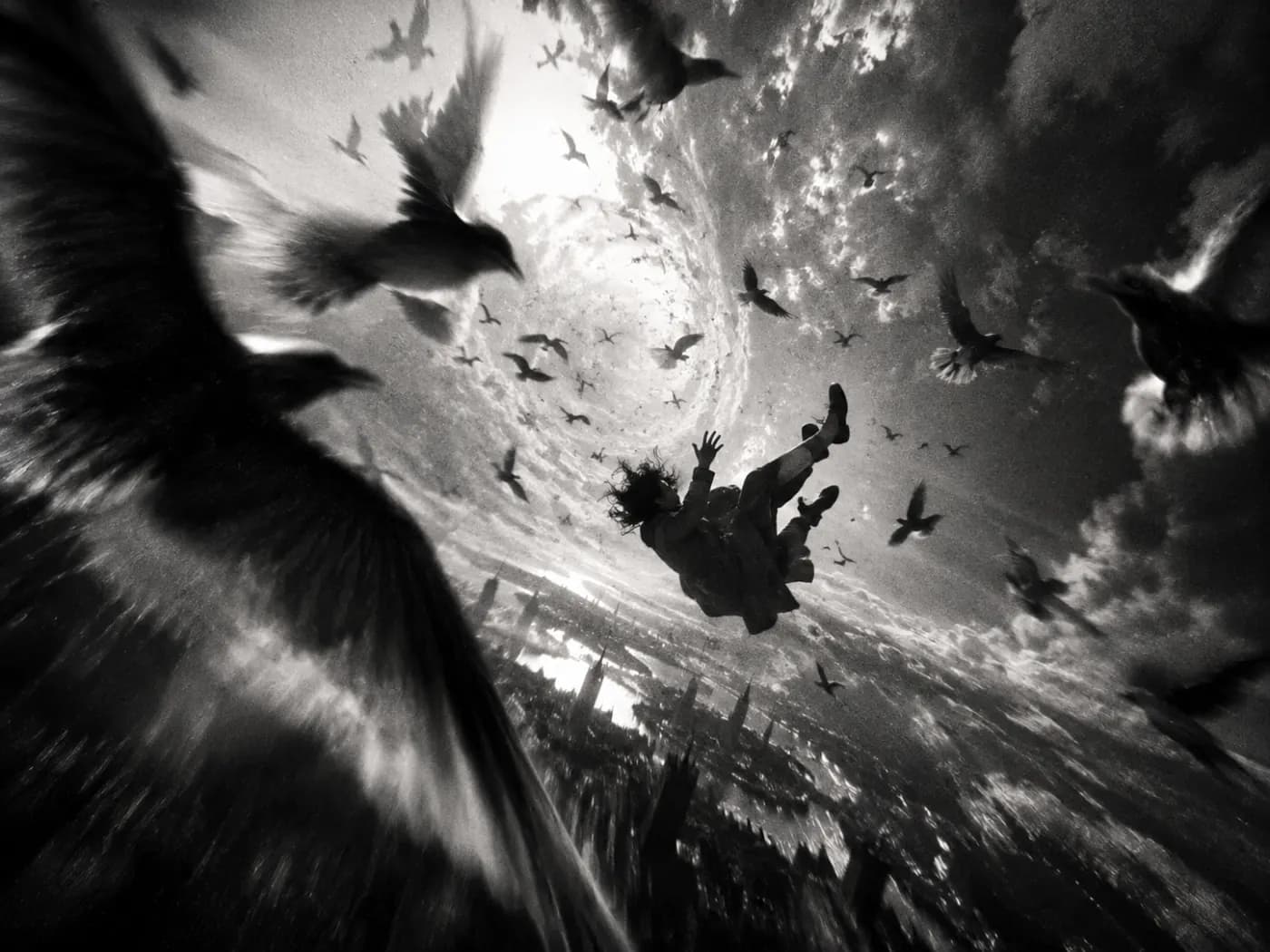
Inner universe
A black-and-white surreal figure dissolving into clouds, birds and fragments of light.
How to get more from Kling 3.0
Use the brief to define a complete movement: where it starts, what changes and where the shot ends.
Start with a clear movement study
A person turning, a fabric reveal or a camera tracking a product gives you a concrete action to evaluate. Establish the framing before adding secondary subjects or several simultaneous movements.
Separate subject motion from camera motion
Describe the subject’s direction and pace in one sentence, then the camera’s position and movement in another. Decide whether the clip needs generated audio or will receive a soundtrack during editing.
Inspect the beginning and end
Compare the first and last frames for changes in the subject, clothing and background. Watch hands and contact with the ground during movement. Revise one motion instruction at a time so you can see what changed.
Kling 3.0 at a glance
What this model actually accepts. The studio shows exactly these options when it is selected — nothing more, nothing it would reject.
Kling's newest model, 1080p pro mode
Open Kling 3.0 in the studio →- Made by
- Kling
- Output
- Video clips
- Aspect ratios
- 16:9 · 9:16 · 1:1
- Resolution
- 1080p
- Clip length
- 5s · 10s
- Soundtrack
- Optional, generated with the picture
- Reference image
- Optional
- Price
- 90 credits per second of footage
How to use Kling 3.0 on LoveImage
- STEP 01Write the brief
Describe the subject’s direction and pace in one sentence, then the camera’s position and movement in another. Decide whether the clip needs generated audio or will receive a soundtrack during editing.
- STEP 02Choose available settings
Available here: 1080p. These are the settings enabled in this workspace, not an exhaustive list of the provider’s options.
- STEP 03Review the result
Compare the first and last frames for changes in the subject, clothing and background. Watch hands and contact with the ground during movement. Revise one motion instruction at a time so you can see what changed.
Kling 3.0 on LoveImage: questions people ask
A person turning, a fabric reveal or a camera tracking a product gives you a concrete action to evaluate. Establish the framing before adding secondary subjects or several simultaneous movements.
Available here: 1080p. These are the settings enabled in this workspace, not an exhaustive list of the provider’s options.
16:9 · 9:16 · 1:1
5s / 10s
Upload one reference image in the workspace, then choose a compatible image-to-image or image-to-video model. Available settings depend on that model.
You can turn generated audio on or off before submitting.
The cost depends on the model, settings and output count. The workspace shows the credit cost before submission; check that estimate for your selected configuration.
Select the model in the workspace and describe your scene. Add a reference image when needed, choose your settings and review the credit cost before generating.